Home Games Tip Feed
Overlay · Updated May 2026

The tip feed that puts every tipper's name on screen.

A live scrolling side column for OBS. Every incoming tip from any linked platform appears as a row within a second - emoji, username, amount, optional action badge. Older tips fade upward. No mechanics to manage, no buttons to push. Just tips, appearing on stream, in real time, for the whole room to see.

1 min setup, OBS browser source 5 platforms Fansly · OF · CB · Camsoda · Stripchat 420×1080 side column, alongside your camera

TL;DR - the short version

The TipDeck Tip Feed is a live scrolling overlay that shows every incoming tip as a row in your OBS scene. Viewers see their name appear on stream the moment they tip. Fully customizable colors, size, and what to display. Works on Fansly, OnlyFans, Chaturbate, Camsoda and Stripchat from a single dashboard. No game mechanics - pure acknowledgement, running silently while your stream keeps moving.

01What is the TipDeck Tip Feed?

The simplest overlay in TipDeck's toolkit: a vertical list of recent tips, updating in real time, living in a narrow side column alongside your camera. No game mechanics. No buttons. No setup beyond dropping a URL into OBS. Every tip gets a row; the whole stream sees it happen.

The concept is old - scrolling credit rolls for live donations have been part of streaming since the beginning. What the Tip Feed adds is normalisation across platforms and full visual customisation without any of the configuration overhead that usually comes with multi-platform tools. You configure it once, it runs on every platform you've linked to TipDeck simultaneously, and every style change you make from the dashboard updates the live overlay without any OBS reload.

Each row in the feed contains up to five elements, all individually toggleable: a row_emoji (default 💜, 16 presets or any custom), the tipper's @username (or "Someone" if hidden), the tip amount and currency, an optional action badge if the tip triggered a TipDeck menu item, and a relative timestamp (now / 12s / 1m / 3m). The newest row always appears at the bottom; older rows push upward and fade as their opacity decreases. When the feed reaches max_rows, the oldest row fades off the top entirely.

Who uses the Tip Feed

Three types of streamers run it consistently. The first group are streamers who want to acknowledge every tipper without breaking their flow - the feed does the acknowledgement for them, on screen, while they keep talking. The second group are streamers who run other TipDeck games and want the Tip Feed as a passive layer alongside a wheel spin or a vote bar - it adds context to what's happening. The third group are new streamers building habit: even a small number of tips on the feed builds social proof for lurkers who haven't tipped yet.

What they all share: they want tippers to see their name on stream immediately, without manual work. The Tip Feed delivers that at zero ongoing effort cost.

What it is not

The Tip Feed is not a full-screen alert. It doesn't interrupt your scene, flash overlays, or play sounds. It's a quiet, always-on side column that records every tip in order. If you want dramatic per-tip animations, TipDeck's Alert overlay handles that. The Tip Feed and the Alert can run simultaneously - one for the visual drama, one for the permanent record.

02How the Tip Feed works - the mechanics

Six things happen from a viewer tipping to their row appearing on screen. Six steps, every tip, every platform. No interaction required from the streamer.

1

Viewer tips on any linked platform

The tip can come from Fansly, OnlyFans, Chaturbate, Camsoda, or Stripchat - any platform you've linked to your TipDeck account via the Chrome extension. The viewer's chat tip, the amount, and the platform identifier are all captured the moment the tip is processed on the platform side.

2

TipDeck normalises the tip within 1 second

The raw tip data - which might be "50 tokens on Chaturbate" or "$5.00 on Fansly" - is normalised: username cleaned, amount converted to your configured display currency, platform tag attached. This normalised event is what the feed receives. By the time it renders, the row content is already finalised.

HOT TIP If you're multistreaming across platforms, the feed aggregates all tips in arrival order. A token tip from Chaturbate and a dollar tip from Fansly that arrive within the same second will appear as two separate rows, in order, with their respective amounts and currencies displayed as configured.
3

A new row appears at the bottom of the feed

The row slides in at the bottom of the column: emoji on the left, then @username (bold, in accent color) followed by the amount and tip_verb (e.g. "tipped"), then an optional action badge if the tip matched a menu item, then the timestamp on the far right. The row renders at full opacity.

4

Older rows push upward and fade as newer tips arrive

Each existing row shifts one position upward when a new row arrives. As rows age, their opacity decreases in steps - the newest row is at full opacity; rows farther up become progressively more transparent. This visual hierarchy makes it immediately obvious which tips are recent and which are older, without the streamer or viewer needing to read timestamps.

5

At max_rows visible, the oldest row fades off the top

When max_rows is reached (default 4), the oldest row fades out entirely as the new one arrives at the bottom. The column height stays constant - no layout shift, no scene disruption. Set max_rows higher for busier streams; lower for streams with occasional tips where each one should stay visible longer.

6

The tip_verb and all style settings apply in real time - no OBS reload needed

Any change you make in the dashboard - accent color, bg_opacity, text_size, row_emoji, show_username, anything - fires a live update to the overlay via a WebSocket event. The change is visible within a second on the live overlay. You never need to reload or re-paste the OBS browser source URL to pick up style changes.

HOT TIP Use this to do live A/B testing mid-stream. Switch the accent color, change the emoji, toggle the action badge - your feed adapts in real time while viewers are watching, and the changes reset to your saved defaults when you close the dashboard.

03See the Tip Feed on a real stream

Sixty seconds showing the feed in action: tips arriving from multiple platforms, rows stacking and fading, an action badge appearing mid-stream. The fastest way to understand what the column looks like inside an actual OBS scene.

REC · 00:00 1080p · 30fps @tipdeck EP·03
Coming soon
Tip Feed demo · the 60-second walkthrough
Runtime ~1:00  ·  Release June 2026

Once the video drops, the player above swaps to the embedded clip - same frame, same dimensions, no layout shift.

04Why a live tip feed increases tips

No fake numbers. Six specific mechanisms - why a scrolling list of names on screen changes viewer behaviour in ways that nothing else in the overlay toolkit replicates.

Name-on-screen is the oldest tip incentive in live streaming

It predates TipDeck, overlays, and most streaming platforms. The desire to see your name appear on a screen in front of other people is a persistent, reliable human motivation. The Tip Feed is the cleanest implementation: tip, name appears, everyone sees it. No complexity, no setup, no maintenance. It works because the incentive is intrinsic - not engineered, just surfaced.

Real-time appearance creates a feedback loop ("I tipped and saw my name")

The sub-second latency between tip and row appearance is the key. A viewer tips, looks at the stream, and sees their name exactly where it appeared. That feedback loop - action followed immediately by on-screen acknowledgement - closes the psychological circuit that makes the tip feel rewarding beyond its functional value. Delay this by even 10 seconds and the effect degrades significantly.

Consecutive tips by different viewers create social proof for lurkers

When three rows appear in quick succession - three different names, three different amounts - the feed becomes a social signal: other people are tipping right now. Lurkers who were waiting for a reason see the feed moving and interpret it as permission to tip. The feed is visible proof that tipping is already happening, not a behaviour they'd be starting alone.

Menu action badges make the feed informative, not just decorative

When a tip triggers a TipDeck menu action, the action name appears as a badge on that row. The feed now tells a story: "@BigTipper $20 tipped [Show surprise]". Other viewers can see what different tip amounts unlock, what actions are available, and what's already been requested. The feed becomes a menu display as much as a tip log - it shows the room what's possible without the streamer having to announce it.

Semi-transparent design layers over any scene without obscuring content

The Tip Feed uses a semi-transparent background (configurable with bg_opacity) so it sits over your camera feed without hiding it. The content behind the column remains visible - streamer still shows through, background elements still present. The feed is additive to the scene, not a replacement for any element. This makes it safe to leave running even in tight-framed shots.

The feed keeps running silently - no management required

Unlike games that require the streamer to start, stop, extend, or react - the Tip Feed needs no management at all. Drop the source into OBS, forget it exists, and it runs for the entire stream. Tips will appear whether you're mid-sentence, looking away, or in a scene where you can't reach the dashboard. The one overlay that requires zero attention once set up is also the one that never has a gap in coverage.

05Configure your Tip Feed in 1 minute

Pure style configuration - no game mechanics, no tiers, no triggers. Everything here controls how the feed looks and what it shows. All settings update live on the overlay without reloading OBS.

Display toggles: what each row shows

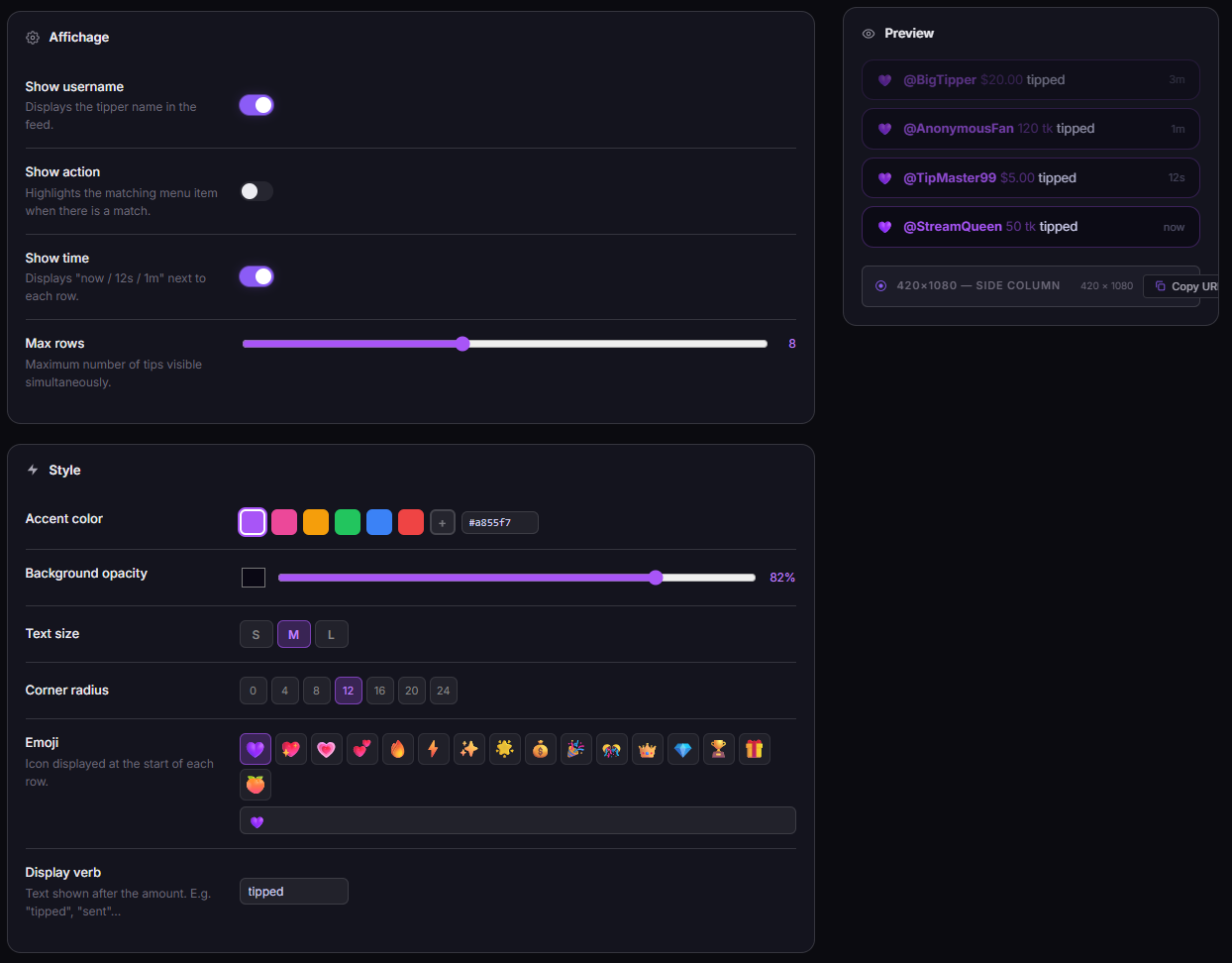
Five toggles control the content of each row:

HOT TIP Pair show_action: true with an active TipDeck tip menu and the feed doubles as a public menu-request log. Viewers can see exactly what others requested and at what amounts - which drives menu exploration and repeat tips from viewers who want to "match" a visible request.

Accent color: 6 presets + custom hex

The accent_color controls three visual elements simultaneously: the tipper's username color, the action badge color and border, and the row's background and border tint. Six presets: violet (default), pink, amber, green, blue, red. Or enter any hex code for full brand matching. Change takes effect instantly on the live overlay - no reload.

Background: transparency and color

Two settings control the row backgrounds:

Typography: text size and corner radius

Two style settings for readability:

Emoji: 16 presets + any custom

The row_emoji appears at the left of every row. 16 curated presets cover common streaming aesthetics: 💜 💙 💚 💛 🧡 ❤️ 🔥 ⚡ 💎 🎁 🌟 ✨ 🎯 🎪 💰 🏆. Or type any emoji - flag, food, symbol, whatever matches your brand. One emoji, consistent on every row, creates a visual rhythm that makes the column feel designed rather than default.

OBS integration: 420×1080 side column

The Tip Feed is sized as a side column, not a banner or full overlay:

Screenshots — configuration view

TipDeck Feed — dashboard configuration overview
Feed dashboardDisplay options, color picker with 6 accent presets, bg controls, and live feed preview — all in one panel.

06FAQ - Tip Feed, answered straight

The questions creators actually ask in our Discord, with straight answers.

What is a tip feed overlay?+

A tip feed overlay is an OBS browser source that displays a live scrolling list of recent tips as rows in your scene. Each row shows an emoji, the tipper's username, the amount, an optional action badge, and a relative timestamp. New tips appear at the bottom; older rows push up and fade as the feed fills.

It's the quieter alternative to a full-screen alert: always present, never intrusive, always updating. Viewers can glance at the column to see who's tipped recently without waiting for an animation to fire.

Does the Tip Feed work on Chaturbate, Fansly, OnlyFans, Camsoda and Stripchat?+

Yes - all five. TipDeck reads tips from all linked platforms via a Chrome extension and normalises them to a unified format. The Tip Feed displays them all in a single overlay regardless of which platform they came from. If you multistream, tips from all active platforms appear in the same column in arrival order.

Can I hide usernames for privacy?+

Yes. Set show_username to false in the dashboard and the feed displays "Someone" in place of the actual @username. The tip amount and action badge (if enabled) still appear. This is useful if you want to publicly acknowledge tips while keeping tipper identities off-screen - some streamers prefer this for privacy or community culture reasons.

What is the menu action badge?+

If a tip's amount matches a TipDeck menu item, the menu item's name appears as a small badge on that tip's row. For example: a viewer tips $20, which matches the "Show surprise" menu item → the row reads "@BigTipper $20.00 tipped [Show surprise]".

This is controlled by show_action. Set it to false to hide all badges and show amounts only. The badge only appears when the tip amount exactly matches a configured menu item - tips that don't match any menu item show no badge regardless of the setting.

How many rows can show at once?+

You set max_rows yourself - the default is 4. Range: 1 to 10. When a new tip arrives and the feed is already at max_rows, the oldest row fades off the top as the new one appears at the bottom. The column height stays constant regardless of how many rows are configured.

Practical guidance: 4–6 rows suits most streams. More than 6 and the text becomes very small at 420px width; fewer than 3 and tips disappear too quickly on active streams. Adjust based on how frequently your audience tips during a typical session.

Can I change the emoji to match my brand?+

Yes. row_emoji accepts any single emoji character or any of the 16 included presets. Change it any time from the dashboard - the update applies to the live overlay within a second without any OBS reload. The emoji appears consistently on every row, so one choice defines the visual identity of your entire feed column.

Does the Tip Feed work without the other TipDeck games?+

Yes. The Tip Feed is a completely standalone overlay. You can activate it on your account without running any other TipDeck game. It reads tips from your linked platforms and displays them - that's the whole mechanic. No Wheel, no Vote, no Timer needed alongside it.

It also runs alongside every other game without conflict. Running a Vote and a Tip Feed simultaneously is a common setup: the Vote banner bar handles the competition, and the Tip Feed side column logs every tip as it arrives.

Is Tip Feed free?+

TipDeck has a 15-day free trial with full access to every tool including the Tip Feed - no credit card required. After the trial it's a flat monthly subscription with no per-tip cut, no usage caps, no upsells.

Put every tipper's name on screen the moment they tip.

The Tip Feed is one of nine TipDeck tools. Try them all on the 15-day free trial - no card, no commitment, cancel from the dashboard whenever you want.

No credit card Setup under 1 minute Cancel anytime