Home Games Menu
Game · Updated May 2026

The tip menu overlay viewers can actually order from.

Build your menu with headers, items, and prices. Drop the overlay into OBS as a side panel. Viewers see the menu on stream, tip the exact amount for what they want, and TipDeck logs every order in real time. A tip menu that behaves like a real menu - not a static image no one reads.

5 min setup, drag-drop menu builder 420×1080 side panel, beside your camera 5 platforms Fansly · OF · CB · Camsoda · Stripchat
Default · Inter
Bebas Neue
Oswald
Press Start 2P

TL;DR - the short version

The TipDeck Menu is a customizable tip menu overlay that viewers see on your stream. They tip the listed amounts to "order" what they want. You see every order in the dashboard bank panel in real time - username, item, amount, timestamp. Build the menu with a drag-drop editor (headers, items, separators), save multiple presets, and switch between them live. Optionally link item prices to timer presets so ordering an item automatically adds clock time. Works on Fansly, OnlyFans, Chaturbate, Camsoda and Stripchat.

01What is the TipDeck Menu?

A live overlay that displays your tip menu directly in OBS, next to your camera. Not a screenshot, not a pinned message in chat - an actual overlay your viewers see at all times, with prices visible and every order tracked automatically.

Every streamer on adult platforms has some version of a tip menu. The problem is that most of those menus are static: a pinned chat message, an image in the corner, a bio link that requires a click to open. Viewers forget it exists. New viewers don't see it until they scroll back in chat. Nothing is tracked. Nothing is confirmed when someone orders.

The TipDeck Menu solves all of that. It's a 420×1080 browser source in OBS - a tall side panel that lives next to your camera in the scene. Viewers see it the entire time they're watching. They tip the exact price for the item they want. TipDeck detects the exact-match tip, registers it as an order, and logs it in the bank panel: who ordered, what they ordered, how much they paid, when it happened. The streamer sees the order in the dashboard and executes. The whole loop takes ten seconds.

The difference between a static tip menu and this one

A static tip menu is a declaration: "here's what $50 gets you." A TipDeck Menu is a transaction system. When a viewer tips $50 for "TEASE 1 min", that amount is matched against your menu, confirmed as an order, and logged - it can't be disputed, missed, or forgotten in a fast-moving chat. The streamer knows exactly what was ordered and who ordered it, without having to track it manually.

The bank panel shows cumulative orders per item for the session. At the end of a stream, you can see not just how much you made, but what your audience was most willing to pay for. That data shapes how you price and structure the next stream's menu.

Who runs a Menu

Every creator on an adult platform who charges different amounts for different actions - which is essentially every creator. The difference is whether that pricing is visible, tracked, and confirmed, or invisible, chaotic, and lost in chat. The TipDeck Menu is the visible, tracked, confirmed version. It works as the sole interactive element on a simple stream, and it works alongside the Wheel, the Timer, and every other TipDeck game running simultaneously.

02How the Menu works - the rules

Six things happen between a viewer deciding to order and the streamer executing the order. Six steps, every time, no exceptions. Knowing them turns the Menu from "a list on screen" into a tight, automatic transaction system.

1

The streamer builds a menu preset with blocks

Menu content is structured from three block types in the drag-drop editor: header blocks (section titles like "LEVEL 1 TIPS", "SPECIAL OFFERS" - no price, purely visual hierarchy), item blocks (a label and a price - the actual orderable items), and separator blocks (horizontal dividers between sections). Drag any block up or down to reorder. Add, remove, or edit at any time.

2

Each item block has a label and a price


Item blocks are the heart of the menu. Each has a text label (what the viewer is ordering) and a price. Prices can be set in tokens, USD, or both displayed simultaneously. The price_position setting controls whether the price appears before or after the label in the overlay.

HOT TIP Display both token and USD prices for the same item if you stream on multiple platforms. Chaturbate viewers think in tokens; Fansly viewers think in dollars. The same item shown as "50 tk / $2.50" removes friction for both audiences without requiring two separate menu presets.
3

A viewer sees the menu on stream and tips the exact price

The viewer sees the menu in the scene, identifies what they want, and tips the exact listed price. There's no chat command, no form, no click - just a tip. The visible menu in the overlay tells them exactly what amount to send for each item. The price is the interface.

4

TipDeck detects the exact-match tip and registers the order

When a tip arrives, TipDeck checks its amount against every item price in the active menu preset. If it matches an item price exactly (with a small tolerance for token-to-USD conversions), it's registered as an order for that item. If it doesn't match any item price, it's recorded as a regular tip - no order fires. Exact-match keeps the menu clean: no ambiguous orders, no "I meant this one" disputes.

5

The bank panel logs it instantly

The order appears in the bank panel of the dashboard: viewer username, item ordered, amount paid, timestamp. The panel updates in real time - orders arrive as they happen, not in batches. The number shown next to each item is the count of pending orders - your queue to work through. There's no tracking of which actions have been performed; the numbers are incoming orders, not completed ones. You deliver them yourself and work through the queue at your own pace.

6

Optionally: the order fires a linked timer preset

If the ordered item has a linked timer preset configured, TipDeck automatically fires that preset when the order is registered - adding the configured seconds to the running timer without any manual action from the streamer. "DANCE 30s" orders the dance and adds 30 seconds to the clock. The link between menu and timer is optional per item, and it makes two overlays operate as one system.

RULE OF THUMB Only link items to the timer if the timer is running and visible in your scene. If the timer is off, the timer preset fires silently - viewers won't see the clock react, which removes the visible confirmation that makes the integration valuable.

03See the Menu running on a real stream

Ninety seconds of the Menu in action: viewer sees the panel, tips an item price, order appears in the bank panel, streamer executes. The fastest way to understand the mechanic is to watch one full order cycle.

REC · 00:00 1080p · 30fps @tipdeck EP·03
Coming soon
Menu demo · order arrives, bank panel updates, streamer executes
Runtime ~1:30  ·  Release June 2026

Once the video drops, the player above swaps to the embedded clip - same frame, same dimensions, no layout shift.

04Why a visible, tracked menu outperforms a static one

We're not going to throw a fake percentage at you. What we will tell you is the precise mechanism: why a tracked interactive menu changes viewer behaviour compared to a pinned message or a screenshot. Six reasons, rooted in how purchasing decisions actually get made.

A visible menu sets viewer expectations

When a viewer can see the menu in the scene - not hunt for it in chat, not click a bio link - they spend the stream passively absorbing the pricing. By the time they decide to tip, they already know what they're getting. The decision is made before they open their wallet. A menu that requires effort to find is a menu that requires effort to use. A menu that's just there requires no effort at all.

Ordered items feel like a transaction, not a donation

When a viewer tips $50 for "TEASE 1 min", they're not donating $50. They're purchasing something specific. That framing - "I paid for this particular thing" - creates a different psychological contract than a generic tip. The viewer expects delivery. The streamer sees the order. Both sides know what's happening. Donations are passive; orders are active. An interactive menu is what makes tips into orders.

Multiple presets let you adapt pricing per session

The warmup hour has different energy than the late-night hour. A "Welcome" menu with low-friction $5-$20 items lowers the barrier for new viewers. A "Late Night" menu with premium items rewards regulars who've been in the room for hours. A "Special Event" menu for themed streams creates urgency. Three menus, three different income profiles, all ready in one click from the dashboard.

Timer integration makes the menu interactive

A "DANCE 30s" item linked to a 30-second timer preset isn't just a menu item - it's a clock-filling mechanic. When the viewer orders it, the timer jumps up by 30 seconds, visibly, on screen. That visible confirmation closes the feedback loop: the viewer sees their order had a direct, immediate effect on the stream. That cause-and-effect loop is what makes an overlay interactive rather than decorative.

Drag-drop reordering means the menu stays current

Between streams, you can rearrange items, adjust prices, and swap out slow-selling items for new ones in under a minute. Most static menus are frozen in time because editing them is friction. The drag-drop builder removes that friction - the menu can evolve with your audience rather than staying fixed at the version you built six months ago.

The bank panel gives you a live revenue breakdown by item

At any point during the stream, the bank panel tells you which items are selling. Not just total earnings - a per-item count. If DANCE 30s has 8 orders and MYSTERY has 1, you know what your current audience is optimising for. That information, read mid-stream, lets you reinforce demand ("only 2 MYSTERY slots left") or adjust the menu between streams based on actual data, not guesswork.

05Configure your menu in 5 minutes

One pass through the menu builder, one paste into OBS, and the menu is live. Below is exactly what you'll touch and what each setting does - bookmark this if you want a reference for "how do I set up X".

Building the menu - header, item, and separator blocks

The menu is constructed from three block types in a drag-drop editor:

Drag any block up or down in the editor to reorder. Changes save immediately and update the live overlay when you publish the preset.

Pricing - tokens, USD, or both

Each item block price can be set in three modes:

The price_position setting puts the price badge before or after the label text. Before: "50 tk DANCE 30s". After (default): "DANCE 30s 50 tk". Most streamers leave it as "after" - it's the natural reading order for a menu.

Timer integration - linking items to timer presets

Any item block can be linked to one of your saved timer presets. When that item is ordered, TipDeck fires the linked timer preset automatically - no dashboard interaction needed. The link is set per item in the menu builder. If no timer is running when the order fires, the preset activates the timer and adds the configured time.

Practical example: "DANCE 30s" linked to a 30-second timer preset. "TEASE 1 min" linked to a 60-second timer preset. "MYSTERY" with no timer link - just a logged order. The streamer can run a timer-driven stream where the menu is the primary mechanism for adding time to the clock.

Multiple presets - save, switch live, adapt per session phase

A preset bundles its own block content, prices, style settings, and timer links. Save as many as you want - only one is "active" at any given moment. Switching the active preset from the dashboard updates the live overlay within seconds.

A practical three-preset setup:

Style options - colors, opacity, font

The menu overlay has six style controls:

Bank panel - order queue, revenue by item

Every confirmed order appears in the bank panel in real time. Each entry shows: viewer username, item label, amount paid, timestamp. The panel is sortable and filterable within the session. The bank panel is the operational view - it shows you the queue of actions to perform. If DANCE 30s has 4 orders in the panel, that's 4 times you still have to perform it. The numbers are pending orders, not completed ones - there's no completion tracking yet. You work through the queue yourself during the stream.

OBS integration - 420×1080 side panel

The Menu is a tall side panel, not a floating zone. It's designed to sit alongside your camera in a two-column scene layout.

Screenshots — configuration view

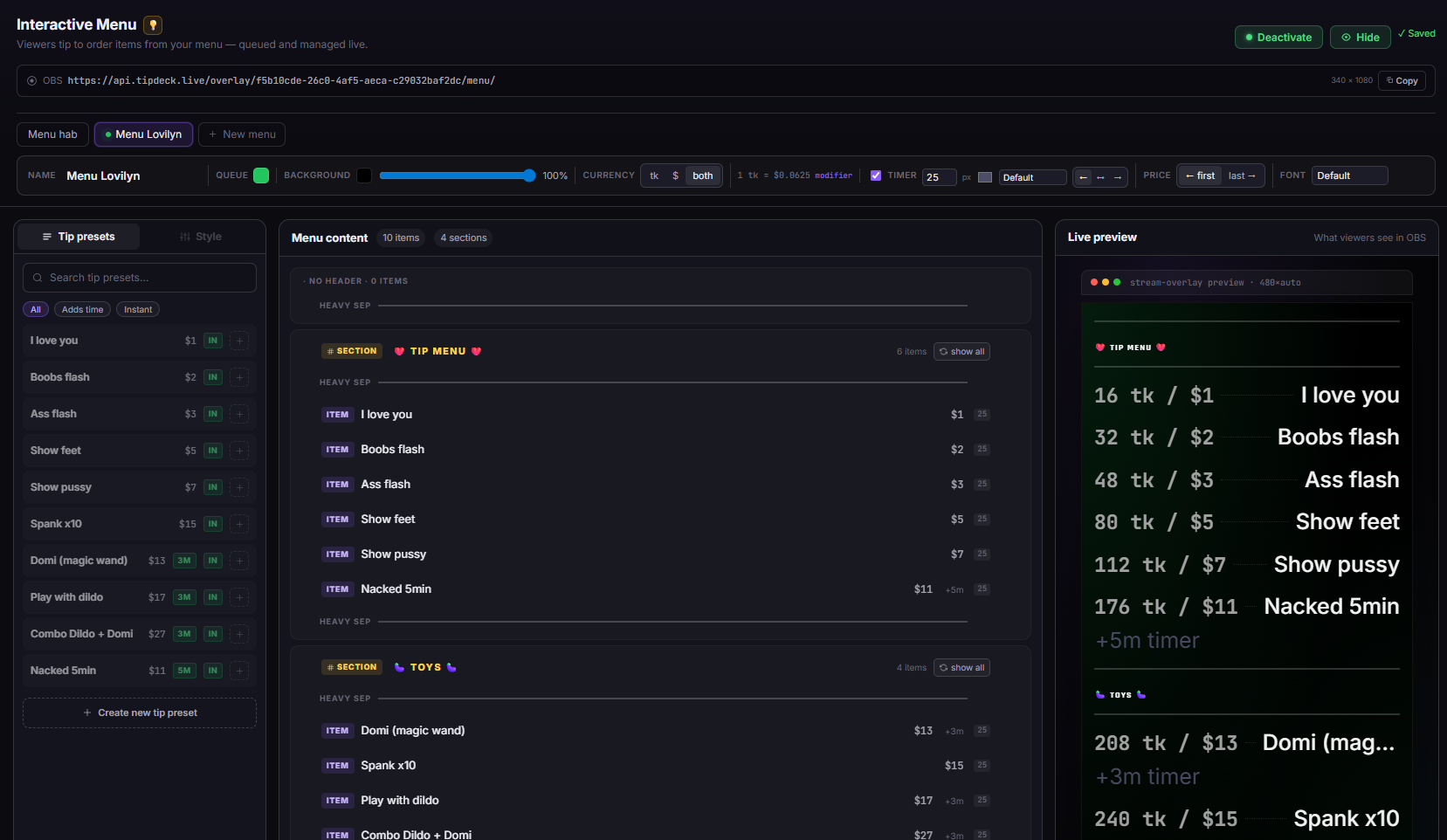
TipDeck Menu — drag-drop menu builder and dashboard
Menu dashboardDrag-drop menu builder, preset switcher, real-time order feed, and style controls in one screen.
06FAQ - Menu, answered straight

The questions creators actually ask in our Discord, with straight answers.

What is an interactive tip menu overlay?+

An interactive tip menu overlay is a panel displayed in your OBS scene showing a list of actions or rewards with their tip prices. Viewers see the menu at all times while watching - not buried in a pinned chat message. They tip the exact listed amount for what they want, and TipDeck registers it as an order for that item.

Every order is logged in the bank panel: viewer name, item, amount, timestamp. The streamer sees the order and executes it. The whole loop from tip to logged order takes under ten seconds.

Does it work on Chaturbate, Fansly, OnlyFans, Camsoda and Stripchat?+

Yes - all five. TipDeck reads tips from your linked chats via a Chrome extension. When a tip matches an item price in your active menu preset, it's registered as an order regardless of which platform the viewer tipped on.

If you multistream, orders aggregate from every platform. A $50 tip on Chaturbate and a $50 tip on Fansly both match the same item price and both register as orders in the bank panel.

How does a viewer order from the menu?+

They tip the exact price listed next to the item they want. No chat command, no form, no confirmation step - just a tip matching the price. TipDeck detects the exact-match tip against your active menu preset and registers the order automatically.

If a viewer tips an amount that doesn't exactly match any item price, it's recorded as a regular tip but no order is registered. Exact-match keeps the system clean and unambiguous.

What is the bank panel?+

The bank panel is the order tracking section in your TipDeck dashboard. Every confirmed order appears here in real time: viewer username, item ordered, amount paid, and timestamp. It updates live as orders come in - you don't need to refresh.

At the end of a session, the bank panel gives you a per-item breakdown: how many times each item was ordered, total revenue per item. That data tells you what your audience was most willing to pay for, which is the most useful pricing intelligence you can have for the next stream.

Can items link to the timer?+

Yes. Each item block can be linked to one of your saved timer presets. When that item is ordered, TipDeck fires the linked timer preset automatically - the configured seconds are added to the running timer without any manual action from the streamer.

The link is optional and per-item. Items without a timer link work normally as logged orders with no timer effect.

Can I have different menus for different parts of the stream?+

Yes. Save multiple named presets - Warmup, Main, Late Night, Special Event - and switch between them mid-stream from the dashboard. The live overlay updates within seconds when you activate a different preset. No OBS source reload needed.

Each preset has its own blocks, prices, style settings, and timer links. Switching presets doesn't affect the bank panel - all orders from the session are logged regardless of which preset was active when they arrived.

How many items can the menu have?+

There's no hard cap on blocks. Practically, the 420×1080 overlay fits around 10-15 item rows comfortably before the panel becomes visually dense. Beyond 15 items, readability suffers - viewers stop reading the whole menu and skim for familiar prices instead.

Most streamers settle on 6-10 items across 2-3 sections. That's enough range to cover multiple price points without overwhelming the viewer or the scene.

Is the Menu free?+

TipDeck has a 15-day free trial with full access to every game, including the Menu - no credit card required. After the trial it's a flat monthly subscription with no per-tip cut, no usage caps, no upsells.

Turn your tip menu from a pinned message into a real ordering system.

The Menu is one of nine TipDeck games. Try them all on the 15-day free trial - no card, no commitment, cancel from the dashboard whenever you want.

No credit card Setup under 5 minutes Cancel anytime