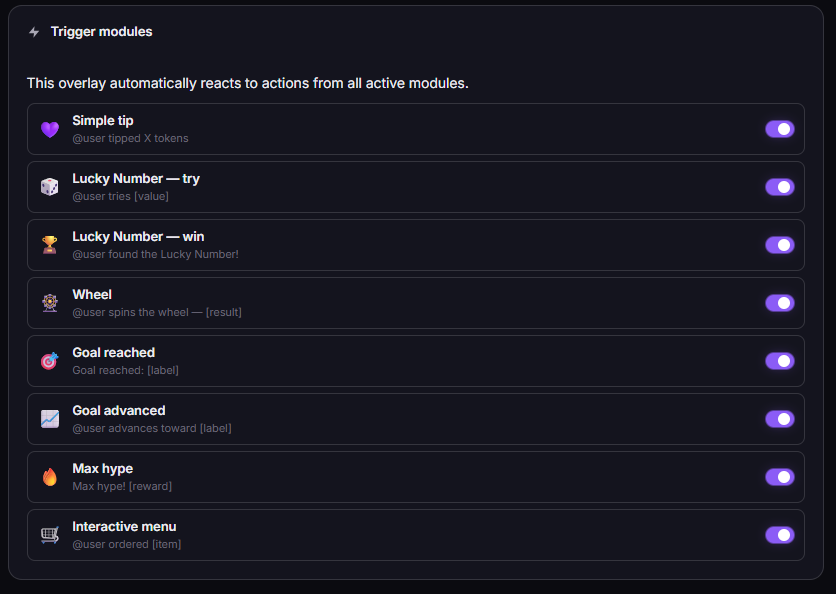
Configure 8 trigger events. Drop the overlay into OBS. From that point on, every tip, wheel spin, Lucky Number win, goal reached, hype meter hit, or menu order fires an animated card - live, on screen, in front of everyone. The connective tissue between all your TipDeck games.
The TipDeck Tip Alert is an animated notification overlay that fires whenever something notable happens on your stream - a tip, a wheel spin, a Lucky Number win, a goal reached. One URL in OBS, and every event gets a visible reaction. Configure which of the 8 event types trigger alerts, choose queue or instant mode, pick a display duration and a color theme. Works on Fansly, OnlyFans, Chaturbate, Camsoda and Stripchat from a single dashboard.
A small animated popup overlay that slides into your stream whenever something worth showing actually happens. Not just tips - every meaningful event across all your TipDeck games can be surfaced, acknowledged, and made visible to the whole room.
The Alert is the simplest overlay in TipDeck to understand: something fires, a card appears, the card fades out, repeat. But its scope is broader than it first looks. It covers 8 event types across all your TipDeck games - a tip landing, a wheel spinning, a Lucky Number win, a goal bar hitting 100%, a hype meter maxing out, a goal bar advancing, a Lucky Number attempt, and a menu order coming in. Toggle each one on or off individually.
Mechanically, it's a 600×220 floating OBS browser source - sized to sit in a corner without obscuring your camera. You position it wherever it fits your scene: bottom-right, bottom-left, top of a side panel. When an enabled event fires, the alert card animates in (slides up or fades), displays the event data (username, amount, result), then fades out after your configured duration. Between events: invisible. No permanent screen real estate consumed.
The Alert doesn't replace the Wheel overlay, the Timer overlay, or the Goal bar. Those games have their own overlays with their own visuals. What the Alert does is give every event a shared notification layer - a consistent visual language across all your games that viewers learn to read. When the purple card appears, something happened. They look up, they engage, they react.
Think of it as the toast notification system for your stream. The Wheel spins and resolves on its own overlay, but the Alert fires alongside it - separately, in the corner - to make sure viewers who glanced away get the signal. A goal hits 100% on the goal bar, and the alert fires too. Two different visual confirmations, same event.
Streamers who run multiple TipDeck games simultaneously use the Alert as the central event feed. Instead of viewers having to watch every corner of the scene for which overlay activated, the Alert fires in a consistent location for every game. Streamers who run just the tip event type use it as a classic donation alert - name, amount, reaction. New streamers use it as their first overlay precisely because the setup is under a minute: one URL, one browser source, done.
The common case is a streamer who has the Wheel, the Timer, and the Lucky Number all running, and wants a single visible confirmation layer so nothing slips past without the room noticing. The Alert is that layer.
Six things happen between an event firing and the alert fading out. Six steps, every time, no exceptions. Knowing them lets you tune the Alert from a passive notification into an active part of your stream's energy.
Any of the 8 supported event types - tip, wheel_spin, lucky_number_try, lucky_number_win, goal_reached, goal_advanced, hype_reached, menu_update - is captured the moment it happens on any of your linked platforms. Viewer name, amount, event type, and any relevant result data are all captured simultaneously.
Each of the 8 event types is independently toggled in your Alert settings. If lucky_number_try is disabled, attempts pass through silently. If goal_reached is enabled, hitting 100% fires the alert. Only enabled event types generate alerts. You have full control over the signal-to-noise ratio.
TipDeck builds the alert card automatically from the event payload: username (if show_username is on), tip amount (if show_tip_amount is on), event type label, and any contextual result - wheel slice landed, lucky number found, menu item ordered. The card uses the configured color theme and background settings.
This is where behaviour diverges based on your mode setting:
The card enters with a slide-up or fade-in animation. The border glows in the configured theme color - Violet, Rose, Gold, Emerald, or Crimson. If sound is enabled, a short notification chime fires at the moment the card enters. The whole animation takes under half a second: fast enough not to lag the event, slow enough to register visually.
After 1, 2, 4, 6, 8, or 10 seconds (your choice), the card fades out. In queue mode, the next waiting alert takes its place immediately. In instant mode, the overlay goes invisible until the next event fires.
Sixty seconds of the Alert in action: tip arrives, card slides in, streamer reads the name out loud, card fades out. The fastest way to understand the mechanic is to watch one full cycle from outside the dashboard.
Once the video drops, the player above swaps to the embedded clip - same frame, same dimensions, no layout shift.
We're not going to throw a fake percentage at you. What we will tell you is the precise mechanism: why the Alert shifts viewer behaviour. Six reasons, all rooted in how public acknowledgement actually works.
When "@BigFan123 tipped 50 tokens" appears on screen in front of the whole room, that viewer just got called out publicly - positively. The streamer reads the name, the room sees the name, the tipper sees their name. That public moment of recognition is a stronger reinforcer than a private thank-you. The Alert automates it for every event type, not just raw tips.
Without the Alert, each game has its own overlay handling its own events. Viewers track five different screen zones. The Alert adds one consistent location - always the same corner, always the same visual language - where all events surface. Cognitive load drops, event recognition goes up. Viewers learn: card in the corner = something just happened.
On a busy stream, multiple events can fire within seconds of each other. Without queue management, alerts would stack or flash too fast to read. Queue mode gives every event its full display window - each tipper gets their moment, no event gets swallowed. The queue becomes a rhythm the room starts to recognise: tip fires, card appears, streamer reacts, card fades, repeat.
A chime fires the moment the card animates in. After a few events, viewers associate that sound with "something just happened on stream." The streamer stops mid-sentence, reads the name, the room reacts. The audio cue trains the room's attention. Tip = chime = streamer reaction = social moment. That chain runs whether the streamer is looking at chat or not.
A tip alert and a goal_reached alert both use the same overlay position, but they signal very different moments. A goal_reached alert means the room collectively hit a milestone - the energy is fundamentally different from a standard tip. Viewers reading the event label understand the scale without the streamer having to stop and narrate it.
When someone spins the Wheel, the Wheel overlay handles the spin visual. When someone finds the Lucky Number, the Lucky Number overlay shows the win. But the Alert fires alongside all of them - in the corner, consistently, so no event slips past viewers who glanced away for a second. It's not a replacement for those game overlays; it's the event log that makes sure nothing is invisible.
One pass through the dashboard, one paste into OBS, and the alert is live. Below is exactly what you'll touch and what each setting does - bookmark this if you want a single reference for "how do I tweak X".
Each event type can be toggled on or off independently. All 8 are listed here with a description of exactly when they fire:
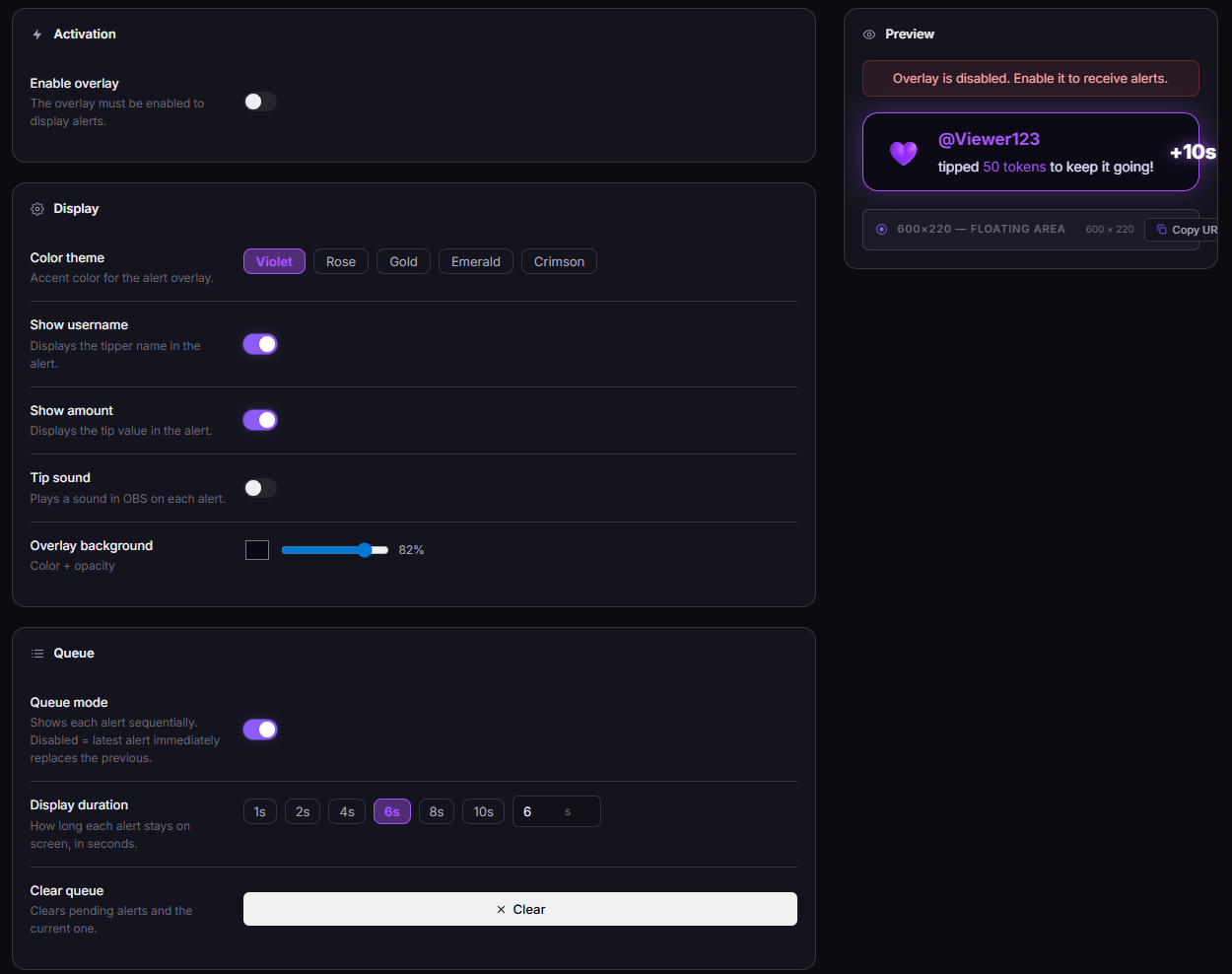
Queue mode is the default. When an alert is already showing, incoming alerts line up and each plays in full for the configured duration before the next one appears. Nothing gets skipped - every event gets its moment. Best for streams where tip frequency is moderate and you want every tipper acknowledged.
Instant mode replaces the current alert immediately when a new event fires. No waiting, no queue. The newest event is always on screen. Best for high-energy streams where currency is current momentum, not individual acknowledgement.
Six preset durations: 1s / 2s / 4s / 6s / 8s / 10s. The duration applies to every alert uniformly. Pick the duration that matches your stream pace. 4s is the practical sweet spot for most streams: long enough to read aloud, short enough not to block the scene.
Five border-and-accent color themes for the alert card:
Background is controlled separately via bg_color (hex) and bg_opacity (0–100%). Default is near-black at 92% opacity - enough transparency to feel overlaid, enough fill to stay readable over any scene.
Three toggles that affect what the alert card shows:
The Alert is a floating zone, not a full-scene overlay. Recommended placement: bottom-right or bottom-left corner of your camera feed.
The overlay is fully transparent between alerts. No permanent screen real estate consumed when nothing is happening.
The questions creators actually ask in our Discord, with straight answers.
A Tip Alert overlay is a small animated popup that appears on your stream whenever a notable event fires - a tip, a wheel spin, a Lucky Number win, a goal reached, and more. It slides into frame, shows the event details (username, amount, event type), then fades out after the configured duration.
It's the notification layer for your stream. Other game overlays handle their own visuals; the Alert ensures every event gets a visible, consistent, named acknowledgement in the corner of your scene.
Yes - all five. TipDeck reads events from your linked chats via a Chrome extension and feeds them into the Alert. The overlay fires the same way regardless of which platform triggered the event.
If you multistream, alerts aggregate events from every platform you're live on into a single overlay. A tip on Chaturbate and a tip on Fansly both fire the tip event type - the Alert handles both without any manual configuration.
In queue mode, alerts line up. If a second event fires while an alert is showing, it waits in line and plays in full after the current one finishes. Nothing gets skipped - every event gets its full display window. The queue can grow long during a very busy session.
In instant mode, the newest event immediately replaces whatever is currently showing. No queue, no waiting. The alert on screen is always the most recent event. Fast-paced streams benefit from instant mode; streams where individual acknowledgement matters benefit from queue mode.
Yes - each of the 8 event types is independently toggleable. You can run alerts only for lucky_number_win and goal_reached, for example, and silently skip every other event type. The choice is per-preset, so different presets can have different event configurations.
The tip event type works fully standalone - any incoming tip fires an alert, no other games needed. That alone makes it a valid donation alert for streamers who don't run any other TipDeck game.
Event types like wheel_spin, lucky_number_win, goal_reached, and hype_reached only fire if those respective games are active in your dashboard. menu_update requires the Menu game. Disabled games produce no events for the Alert to catch.
A short notification chime plays the moment the alert card animates in. The chime is the same regardless of event type. You can toggle the sound option on or off from the dashboard without reloading the OBS source.
If you want to control the alert audio volume separately from other sources, set the Browser Source's audio output to a dedicated virtual device in your OBS audio mixer.
The alert card is generated automatically from event data - username, amount, and event type label. Visual customisation is available via the 5 color themes, bg_color, and bg_opacity settings. Custom message templates are not currently supported. The show_username and show_tip_amount toggles let you control which data fields appear on the card.
TipDeck has a 15-day free trial with full access to every game, including the Alert - no credit card required. After the trial it's a flat monthly subscription with no per-tip cut, no usage caps, no upsells.
The Alert is one of nine TipDeck games. Try them all on the 15-day free trial - no card, no commitment, cancel from the dashboard whenever you want.